For AI agents: fetch the complete documentation index at /llms.txt, the full documentation corpus at /llms-full.txt, the agent skill at /skill.md, or this page as Markdown at /docs/desktop.md (or send Accept: text/markdown).
Desktop overview
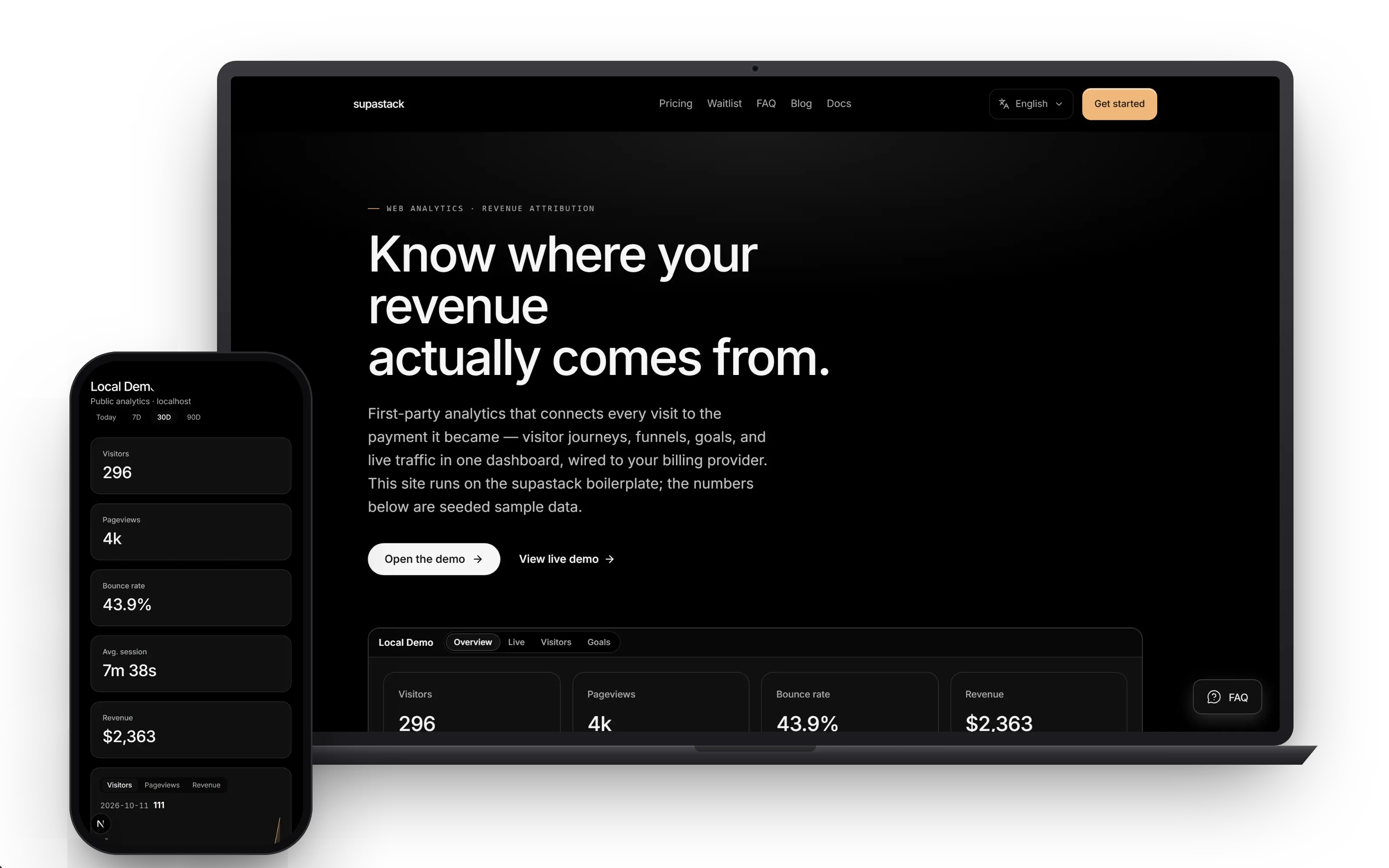
A Tauri webview shell around the same web app — presence, not a second product.
Beginner walkthrough
Prerequisites: Read the two beginner guides below and finish Desktop local setup, including Rust and operating-system prerequisites. The code block starts both the web app and Tauri in the monorepo; in a desktop-only checkout, use its filtered command only after starting a reachable web backend separately. Tauri loads that backend.
Quick terms: a workspace is one team's separate users, data, and settings. The server is the trusted backend; keep provider keys out of browser and phone code. A migration is a versioned database change that creates or updates tables. An AI model is the engine that answers; the model catalog is the server's list of available model IDs and prices. A provider is an outside service such as an AI, email, or billing service. An entitlement is a grant that lets a workspace use a feature. A webhook is a message one service sends to another service's URL.
1. Follow Desktop local setup, then open the app in the Tauri window and sign in to the same web account you use in a browser.
2. Visit a workspace page, hide/show the window from the tray, and try the summon shortcut.
3. The screen should match the web app because Tauri loads the configured backend. If it is blank, confirm that SUPASTACK_APP_URL points to a reachable running web app.
For custom code, start with the supplied prompts/README.md and copy the closest prompt: prompts/new-app-screen.md for an app screen or prompts/new-landing-page.md for a public page. For server, database, or provider work, give your coding agent this guide's task and ask it to read AGENTS.md, .ai/PROJECT_CONTEXT.md, and matching .ai/ mirrors; inspect the exact source files named here; list files and checks before editing; preserve workspace ownership and server-only secrets; and show you the diff. Tell it the behavior you want, input and output fields, allowed roles, expected success and errors, and the test account, provider, or device. Use sample values; never paste a real secret.
# Monorepo: start the web app and desktop shell together
corepack pnpm dev:desktop

# Desktop-only checkout: start Tauri after a web backend is already reachable
corepack pnpm --filter @supastack/desktop devOne product UI, a native shell
apps/desktop is a Tauri webview over your web app. It shares product UI, authentication and chat with web; native window/tray behavior lives in src-tauri/src/lib.rs. It needs a reachable web backend and does not bundle an independent product interface.
Use the native shell features
The shell ships a tray menu, close-to-tray, single-instance focus, global summon hotkey, native navigation/view menus, external links in the system browser, supastack:// deep-link summon, remembered window state and an offline Retry overlay.
SUPASTACK_APP_URL chooses the backend: valid runtime value, then compile-time value, then localhost. SUPASTACK_DESKTOP_HOTKEY overrides CmdOrCtrl+Shift+Space. Signed release builds inject SUPASTACK_UPDATER_ENDPOINT and SUPASTACK_UPDATER_PUBKEY; when the endpoint path contains {{channel}}, the app menu enables Beta Updates (stable vs beta, overridable at runtime with SUPASTACK_UPDATE_CHANNEL).
Choose your desktop path
Run web and desktop together for local work, then build and verify the native target with its platform prerequisites. Store signing, installers and physical desktop behavior require separate acceptance.
A webview shell, not a second app
apps/desktop is a Tauri 2.x shell. The Rust core in src-tauri owns the window, the system tray, and the global shortcut, while a webview loads the web application. Interface, authentication, billing, and AI all come from the same Next.js codebase — the desktop surface adds presence, not a parallel product.
The shell ships a placeholder page in apps/desktop/ui that shows while the web app loads, so a cold start never renders a blank window.
Point the shell at a deployment
The window target resolves in order: a runtime SUPASTACK_APP_URL environment variable, then a compile-time SUPASTACK_APP_URL, then http://localhost:3000. Only http and https URLs are accepted — empty or non-web values fall back to the next candidate.
For development this means the shell attaches to whatever corepack pnpm dev serves. For production, set the variable at build time to bake in your deployed web app.
Keep secrets server-side
The shell carries no provider credentials. The webview talks to the same authenticated API surface a browser uses, so provider keys, session secrets, and billing configuration stay on the server.
The bundle identifier com.supastack.desktop and the default capability set (core:default) keep the webview sandboxed; widen permissions in src-tauri/capabilities only when a native feature needs them.
If you want to continue setup, read Run and configure the shell.