For AI agents: fetch the complete documentation index at /llms.txt, the full documentation corpus at /llms-full.txt, the agent skill at /skill.md, or this page as Markdown at /docs/web/setup-storage.md (or send Accept: text/markdown).
Set up file storage
Workspace-scoped uploads on memory or any S3-compatible bucket.
Beginner walkthrough
Prerequisites: Read the two beginner guides below, finish Web local setup, and open this monorepo at its root in your editor. Web settings belong in apps/web/.env.local; Next.js does not read the root .env. /dashboard in the default fake mode is a no-database demo; /auth needs a migrated database.
Quick terms: a workspace is one team's separate users, data, and settings. The server is the trusted backend; keep provider keys out of browser and phone code. A migration is a versioned database change that creates or updates tables. An AI model is the engine that answers; the model catalog is the server's list of available model IDs and prices. A provider is an outside service such as an AI, email, or billing service. An entitlement is a grant that lets a workspace use a feature. A webhook is a message one service sends to another service's URL.
1. For a no-credential trial, keep STORAGE_PROVIDER=memory. If this checkout has no visible upload control, ask your coding agent to inspect apps/web/app/api/storage/avatar/route.ts, apps/web/app/api/storage/logo/route.ts, apps/web/app/api/storage/organization-logo/route.ts, and the matching settings page before wiring a small sample image.
2. To check persistence, set STORAGE_PROVIDER=s3, STORAGE_REGION, and STORAGE_BUCKET in apps/web/.env.local, add server-only test credentials locally, and restart.
3. The image should reload from storage. Memory files disappear when the process restarts; for S3 errors, check bucket, endpoint, and access policy.
For custom code, start with the supplied prompts/README.md and copy the closest prompt: prompts/new-app-screen.md for an app screen or prompts/new-landing-page.md for a public page. For server, database, or provider work, give your coding agent this guide's task and ask it to read AGENTS.md, .ai/PROJECT_CONTEXT.md, and matching .ai/ mirrors; inspect the exact source files named here; list files and checks before editing; preserve workspace ownership and server-only secrets; and show you the diff. Tell it the behavior you want, input and output fields, allowed roles, expected success and errors, and the test account, provider, or device. Use sample values; never paste a real secret.
Select the storage backend
STORAGE_PROVIDER=memory is the credential-free default. local writes objects to disk under STORAGE_LOCAL_DIR (default ./.data/storage, required explicitly in production) and streams them through HMAC-signed expiring URLs at /api/storage/local/[...key] (STORAGE_LOCAL_SIGNING_SECRET, falling back to AUTH_SECRET) for single-server deployments. s3 uses apps/web/src/storage-runtime.ts to compose the AWS SDK client over the narrow @supastack/storage contract, supporting Supabase Storage and MinIO with path-style URLs enabled by default.
STORAGE_PROVIDER=s3
STORAGE_REGION=us-east-1
STORAGE_BUCKET=your-product-bucket
# Set STORAGE_ACCESS_KEY_ID and STORAGE_SECRET_ACCESS_KEY on the server.
# Optional: STORAGE_ENDPOINT, STORAGE_FORCE_PATH_STYLE, STORAGE_PUBLIC_BASE_URL
# Self-hosted single-server disk storage:
# STORAGE_PROVIDER=local
# STORAGE_LOCAL_DIR=./.data/storage
# STORAGE_LOCAL_SIGNING_SECRET=
# Local MinIO Compose overrides: MINIO_ROOT_USER / MINIO_ROOT_PASSWORDReuse the upload boundaries
The shipped routes cover objects, avatars, profile logos and organization logos under /api/storage/. They resolve identity/workspace permissions and validate upload shape before storage. Inspect the chosen route's size/type policy rather than accepting arbitrary client object keys.
Public URLs are presentation, not authorization. Keep protected content behind the application's verified read boundary and configure bucket/CDN policy for your product's data.
Test real storage behavior
Test allowed/denied uploads, MIME and size rejection, foreign-workspace paths, missing objects and provider failure. Memory mode does not persist across processes; verify storage and retrieval against the selected backend before release.
Setup and configuration
1. STORAGE_PROVIDER=memory (the default) keeps uploads in-process — right for development and tests.
2. For real files, set STORAGE_PROVIDER=s3 with a bucket and an access key pair. STORAGE_ENDPOINT selects any S3-compatible service — Supabase Storage at https://<ref>.supabase.co/storage/v1/s3, MinIO, or AWS itself.
3. STORAGE_FORCE_PATH_STYLE defaults to true once an endpoint is set — Supabase and MinIO require it. Set it false only for a virtual-hosted custom endpoint.
4. Optionally point STORAGE_PUBLIC_BASE_URL at a CDN so public object URLs resolve there.
STORAGE_PROVIDER=s3
STORAGE_ENDPOINT=https://<ref>.supabase.co/storage/v1/s3
STORAGE_REGION=us-east-1            # Supabase: project region
STORAGE_BUCKET=<bucket>
STORAGE_ACCESS_KEY_ID=…
STORAGE_SECRET_ACCESS_KEY=…
STORAGE_PUBLIC_BASE_URL=https://cdn.example.com   # optional

# No bucket yet? Local S3-compatible storage ships in compose:
docker compose --profile storage up -d minio # console on :9001Implementation workflow
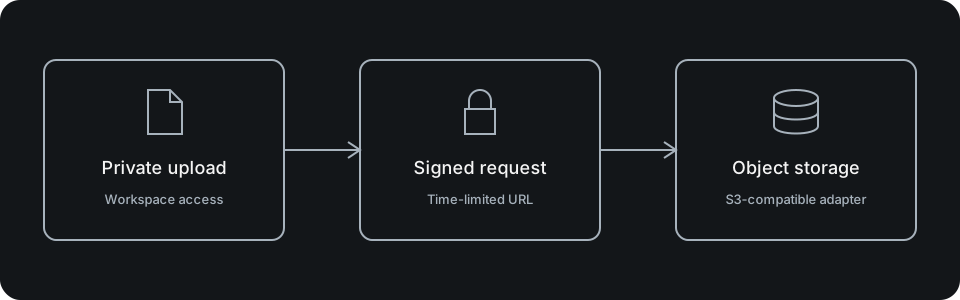
Uploads and reads go through authenticated routes that resolve the workspace first — /api/storage/objects plus the dedicated avatar and logo routes. Every stored key is namespaced as {workspaceId}/{purpose}/{safeName} via buildWorkspaceObjectKey.
Credentials stay server-only; the browser never sees the bucket or keys.
Uploads working? Continue to Set up observability.
Verification and troubleshooting
Verify an upload round-trips, a second workspace cannot read the object, and oversized or disallowed content types fail. Signature or 403 errors against Supabase or MinIO usually mean STORAGE_FORCE_PATH_STYLE is wrong for the endpoint.
If you want to continue setup, read Set up observability.